Actuals
Upload sales data, manage invoices, and track real performance.
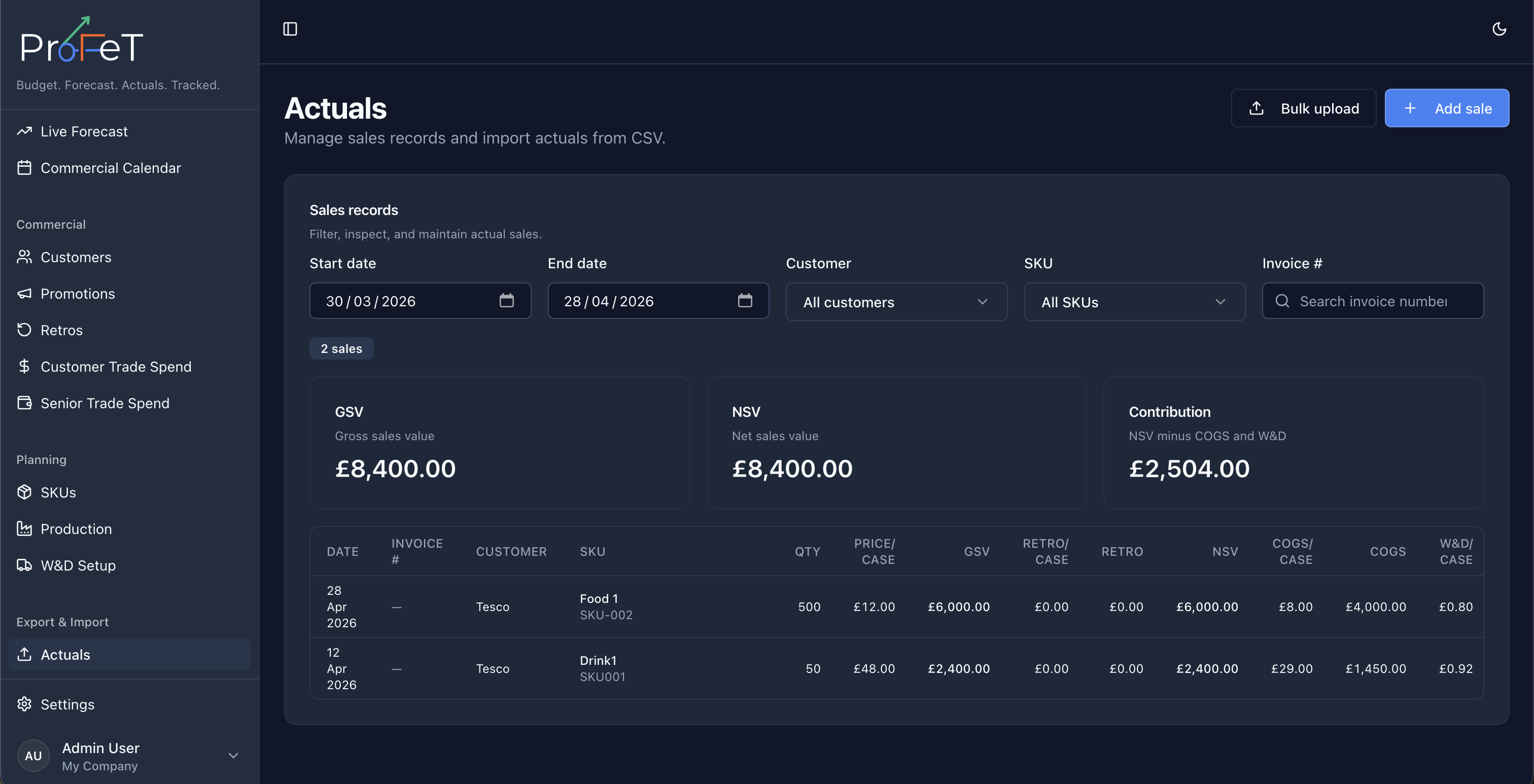
The Actuals page is where your real sales data lives. Import transactions via CSV, create records manually, and review your sales history. Actuals are the foundation for performance tracking — they’re what gets compared against your forecast on the Dashboard.
Getting Data In
Bulk CSV Upload
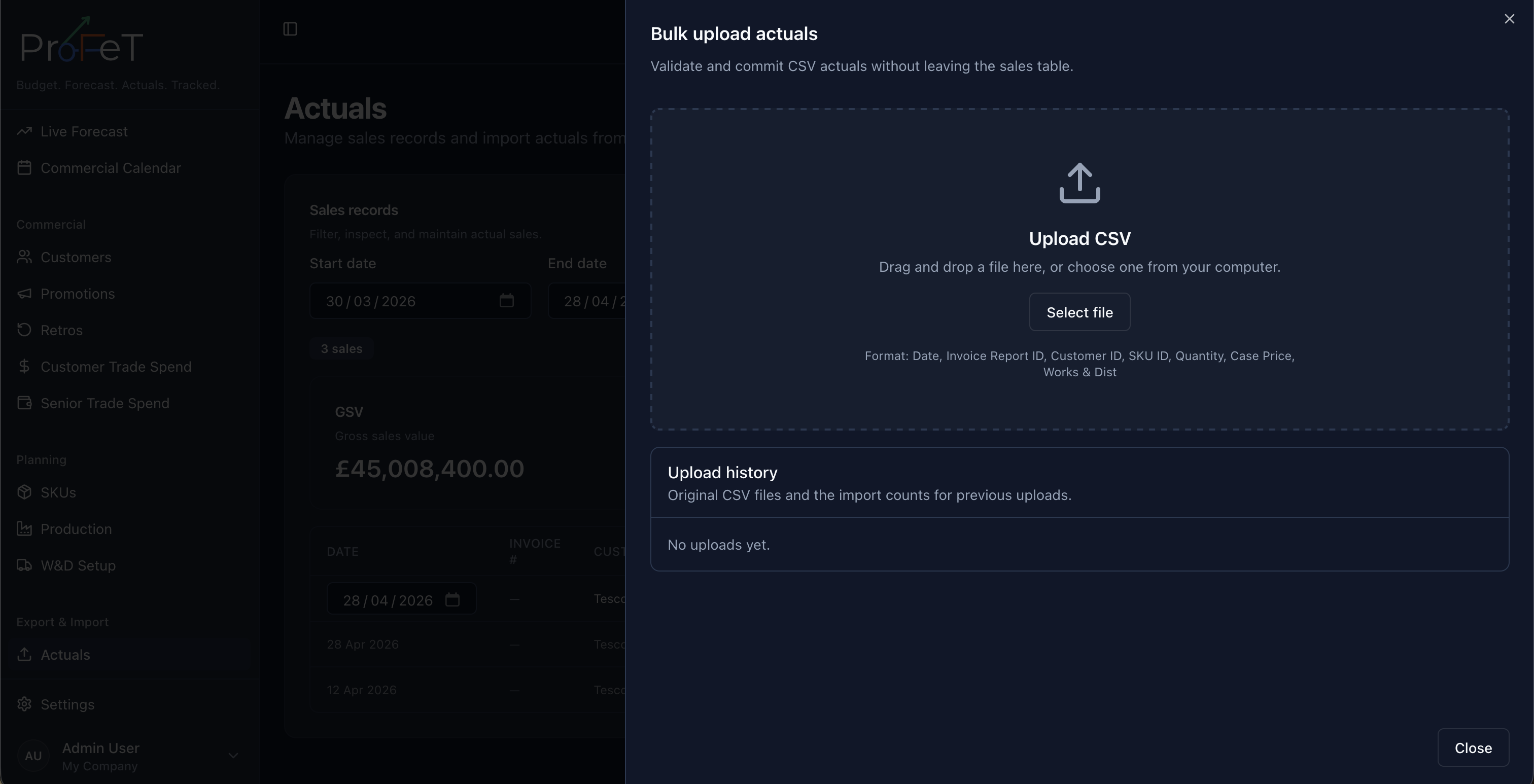
The primary way to import sales. Navigate to Data → Actuals and click Bulk Upload.
CSV Format
Your file must include these columns:
| Column | Description | Format |
|---|---|---|
date | Invoice/sale date | YYYY-MM-DD |
invoiceReportId | Unique invoice identifier | Text |
customerId | Customer code | Must match a customer in ProFeT |
skuId | SKU code | Must match a SKU in ProFeT |
quantity | Units sold | Positive integer |
casePrice | Price per case | Decimal |
worksDist | Works & Distribution total for the invoice | Decimal |
Example
date,invoiceReportId,customerId,skuId,quantity,casePrice,worksDist
2025-01-15,INV-001,CUST001,SKU-A,30,12.50,45.00
2025-01-15,INV-001,CUST001,SKU-B,20,8.00,30.00
2025-01-16,INV-002,CUST002,SKU-A,50,12.50,50.00
Validation
Before committing, ProFeT validates every row:
- Required fields — All columns present, dates formatted correctly, quantities positive
- Reference checks — Every customer and SKU code must exist in your tenant
- Stock checks — Sufficient inventory available for each SKU (based on production batches)
- Duplicate detection — Invoice IDs that already exist are flagged and skipped
If validation finds missing customers, you can create them directly from the upload screen without losing your file.
What Happens on Commit
When you click Commit Upload, ProFeT:
- Creates an upload record for history tracking
- Stores the original CSV file
- Creates invoice and sale records
- Calculates COGS using FIFO from production batches
- Allocates W&D proportionally across line items by quantity
- Updates stock levels (reduces available inventory)
W&D Allocation
The worksDist value in your CSV is the total W&D for the invoice. ProFeT splits it across line items based on their share of total quantity:
Line W&D = Invoice W&D × (Line Quantity ÷ Total Invoice Quantity)Manual Entry
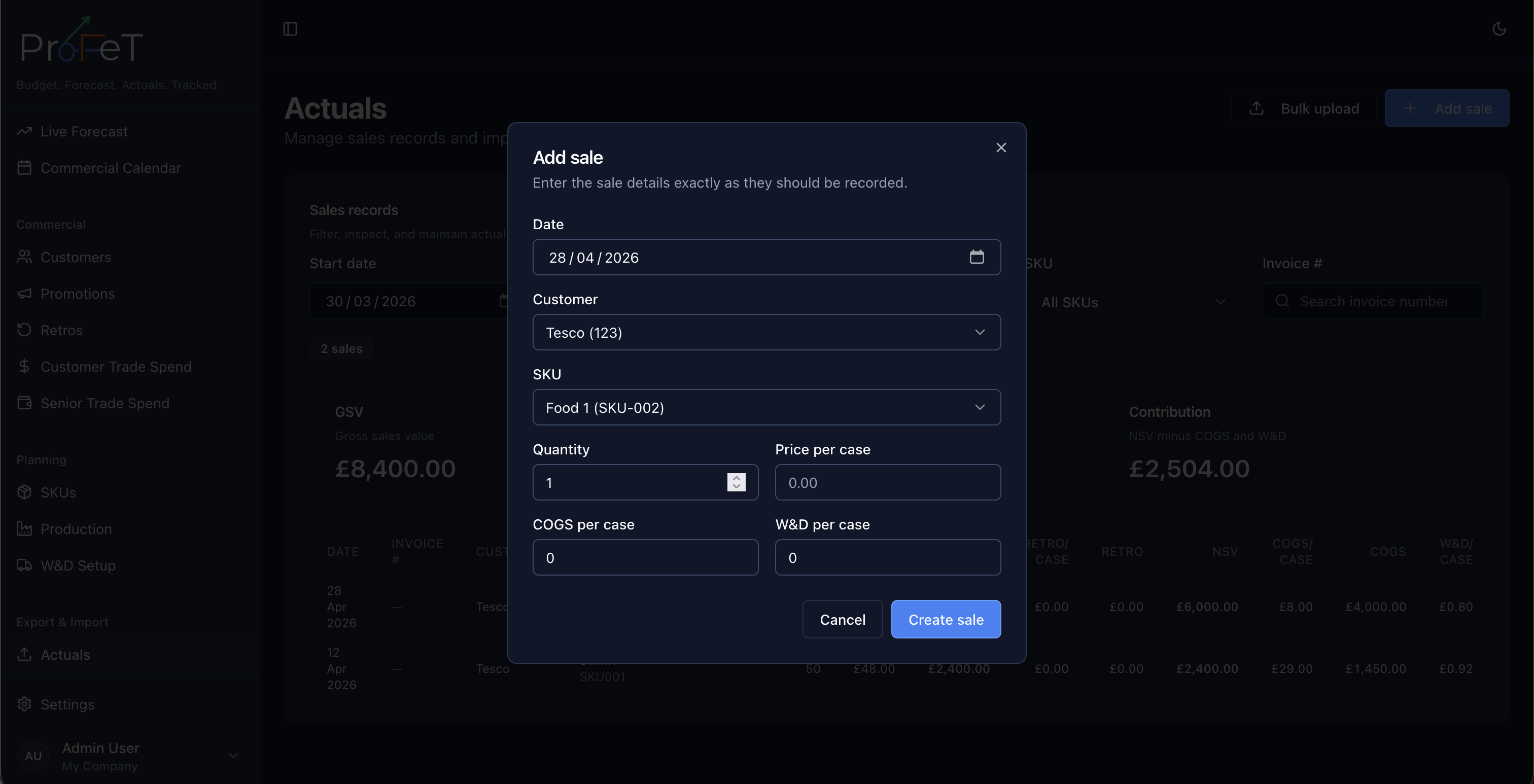
For one-off records or corrections, create individual sales directly in the interface. Fill in the customer, SKU, quantity, price, date, and costs. Manual entries go through the same COGS and stock calculations as uploaded data.
Viewing Actuals
The Actuals list shows all recorded sales with:
- Date, customer, SKU, and quantity
- Price, COGS, W&D, and retro amounts
- The upload batch they came from (for imported records)
Use filters to narrow by date range, customer, or SKU.
Upload History
Every import is logged. Open the upload drawer to see:
- Filename and upload date
- Who uploaded it
- Number of records processed
- Download link for the original CSV
This provides an audit trail and lets you re-download source files if needed.
How Actuals Connect to Other Features
| Feature | Connection |
|---|---|
| Dashboard | Actuals are the “actual” side of Forecast vs Actuals and Budget vs Actuals comparisons |
| Production Planning | Sales consume stock from production batches via FIFO |
| Retros | Retro discounts are calculated dynamically on qualifying sales |
| Live Forecast | Actuals provide the baseline for forecast accuracy measurement |
Handling Common Issues
Missing Customers or SKUs
If your CSV references customers or SKUs that don’t exist, validation will flag them. Either create the missing records first or use the quick-create option on the upload screen.
Insufficient Stock
If there isn’t enough inventory for a sale, you’ll need to add production batches for the affected SKUs before the upload can proceed.
Duplicate Invoices
Invoices with the same invoiceReportId are automatically skipped — this prevents double-counting if you upload the same file twice.
Actuals Screens