Settings & Administration
Manage users, configure your tenant, and control platform settings.
ProFeT’s administration features let you manage your team, configure lookup tables, and control tenant-level settings.
User Management
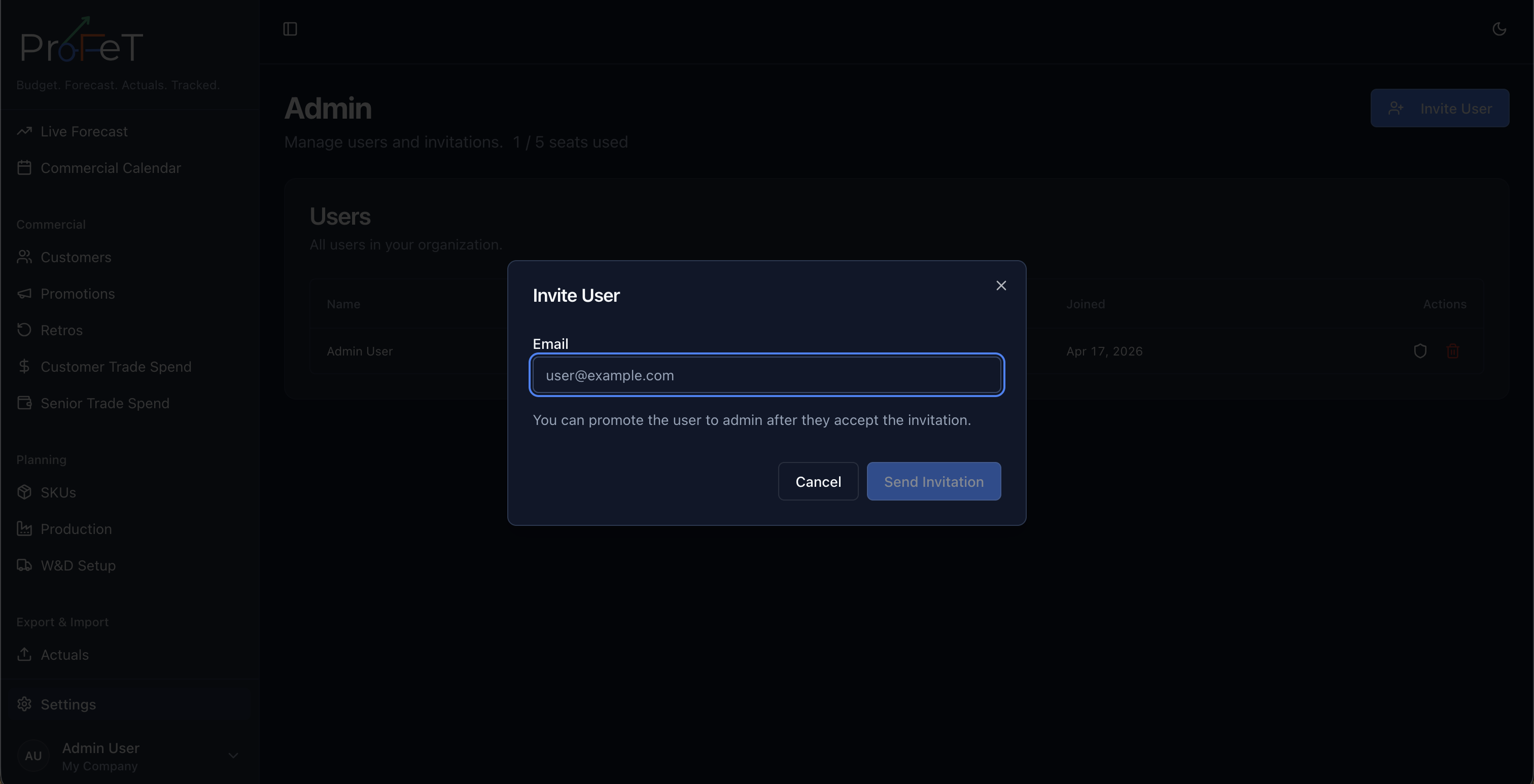
Navigate to Admin to manage your team and seat usage.
Inviting Users
Click Invite User and enter their email address. ProFeT sends an invitation email with a link to complete registration. The invitation appears in the Pending Invitations section until the user accepts.
You can cancel pending invitations, which also frees reserved seat capacity.
Roles
| Role | Capabilities |
|---|---|
| User | View and edit data — forecasts, actuals, customers, SKUs, promotions |
| Admin | Everything a User can do, plus: manage users, configure account settings, manage lookup tables |
| Super Admin | Site-level administration — manage tenants, system settings (internal use) |
Toggle a user’s admin status from the user list.
Removing Users
Admins can remove team members. Removed users lose access immediately.
Account Configuration
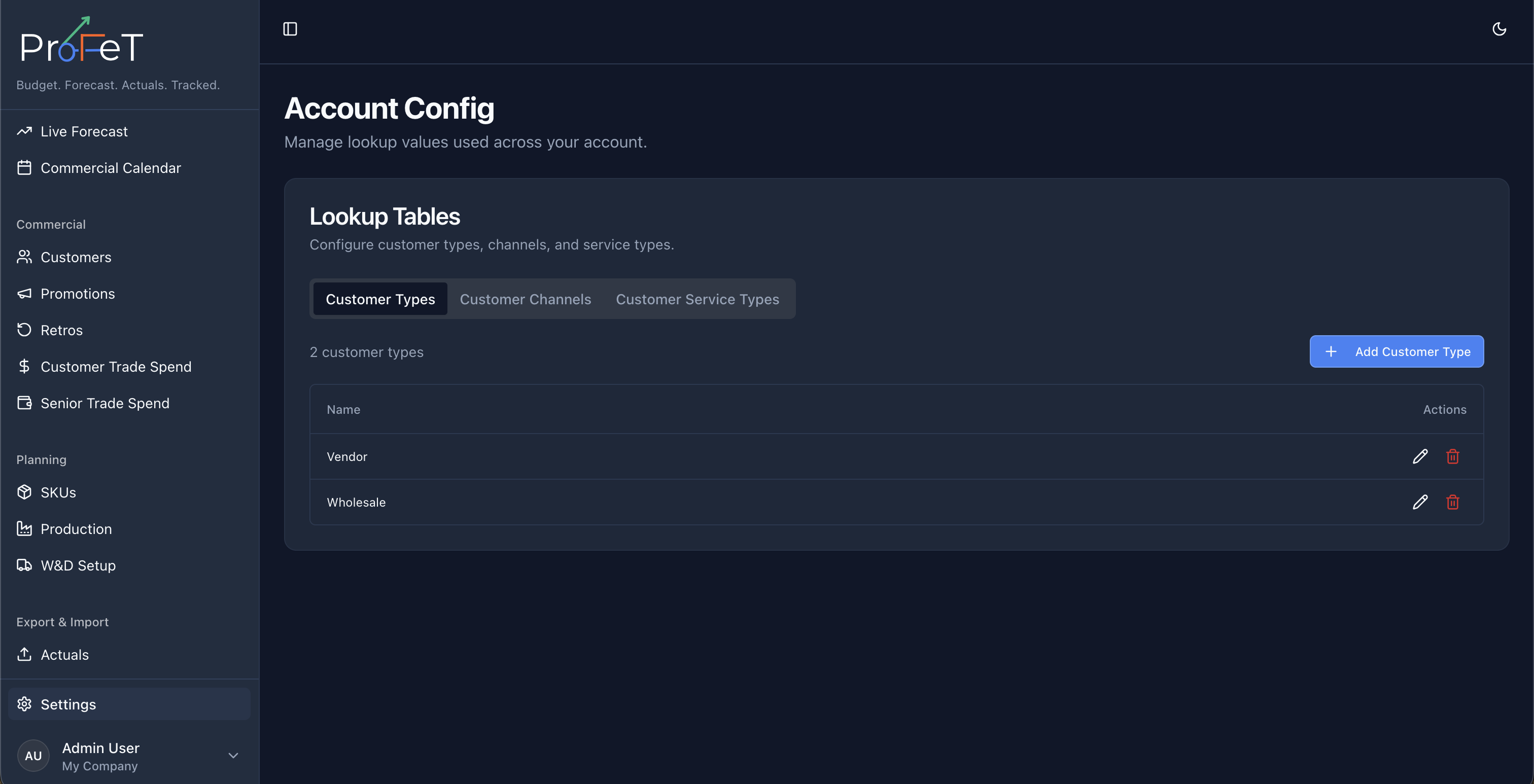
Navigate to Admin → Account Config to manage account-level lookup tables used by customer records.
Customer Lookup Tables
| Table | Used For |
|---|---|
| Customer Types | Classifying customers (e.g. Supermarket, Independent, Online) |
| Channels | Sales channel classification (e.g. Retail, Foodservice) |
| Service Types | How customers are serviced (e.g. Direct, Via Distributor) |
SKU categories and units are managed in SKUs, not in Account Config.
Tenant Settings
Navigate to Settings to configure platform-wide preferences:
Calendar Type
Choose the calendar system used across ProFeT:
| Option | Description |
|---|---|
| Gregorian | Standard monthly periods (Jan–Dec) |
| 4-4-5 | Retail calendar: 4, 4, 5-week periods per quarter |
| 4-5-4 | Alternative retail calendar |
| 5-4-4 | Alternative retail calendar |
This affects how data is aggregated into periods on the Dashboard, Live Forecast, and reports.
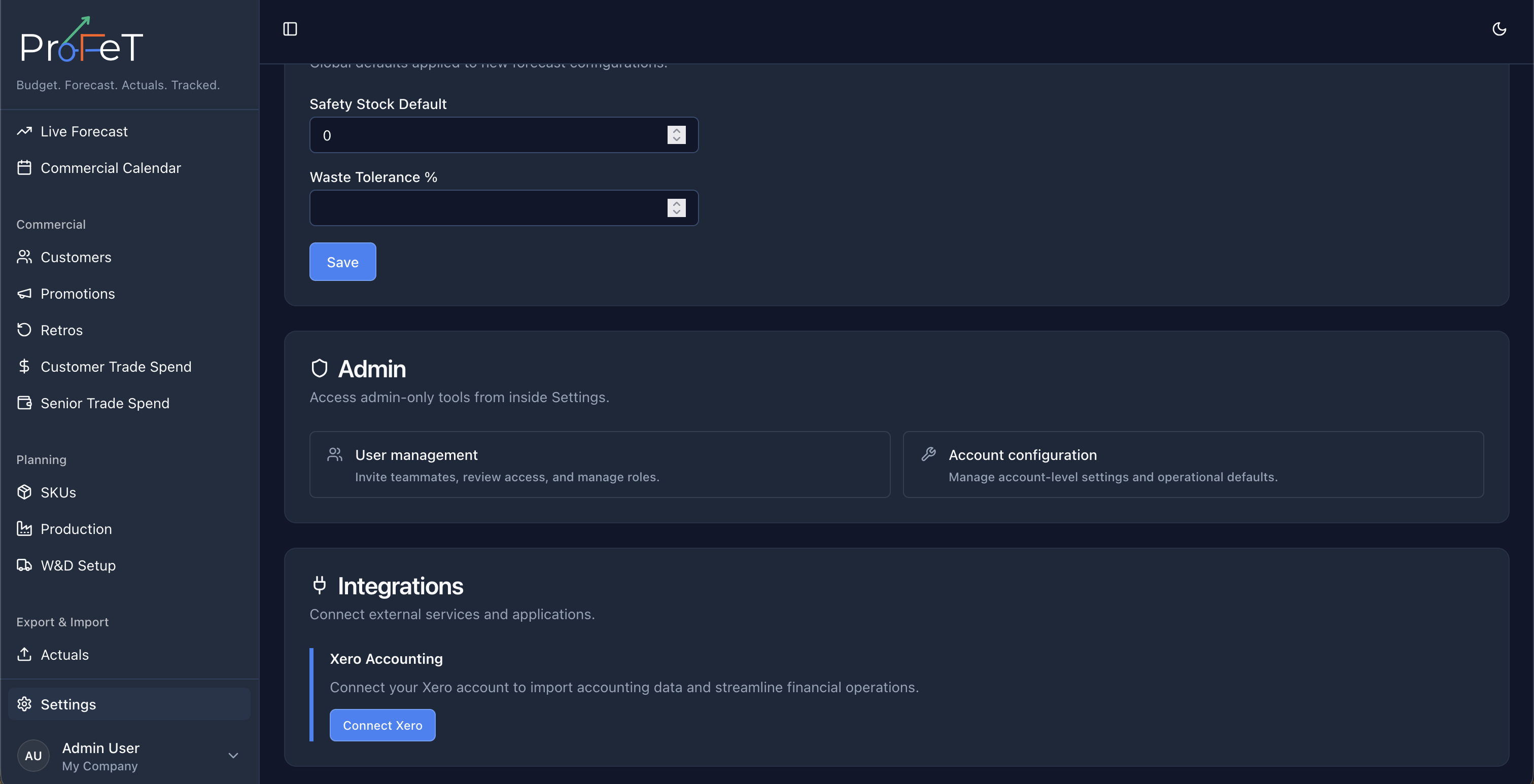
Forecast Defaults
- Safety Stock — Default safety stock level for new SKUs
- Waste Tolerance % — Acceptable waste threshold
Xero Integration
Settings includes Xero connection controls:
- Connect Xero account
- Run connection test
- Disconnect integration
Connection state (tenant name and connected date) is displayed when active.
User Settings
Users can manage account security from Settings:
- Change Password — Update your login credentials
Tenant Limits
Your tenant may have limits on:
- Max Seats — Number of active users allowed
- Max SKUs — Maximum number of SKUs in your catalogue
Current usage is shown on the Admin page. Invites count toward pending seat usage.
Site Administration
Super Admins have access to the Site Admin page for managing the multi-tenant platform:
- Create and configure new tenants
- Monitor tenant usage
- Manage system-level settings
This section is only visible to users with the Super Admin role.
Settings and Admin Screens