Promotions
Create and manage off-invoice and retro-funded promotional deals.
Promotions model the discounts and deals you run with customers to drive volume. ProFeT tracks both the financial terms and the demand impact so promotions flow through to your forecast automatically.
Promotion Types
ProFeT supports two funding structures:
Off-Invoice
The discount is applied immediately at the point of sale — the customer pays a reduced price. The cost shows up directly on the invoice.
Example: 10% off-invoice discount on SKU-A for Customer X during March.
Retro-Funded
The discount is paid back to the customer after the promotional period as a retrospective rebate. The customer pays full price at the point of sale, and the rebate is accrued separately.
Example: £2 per case retro-funded promotion on SKU-B for Customer Y, April–June.
Creating a Promotion
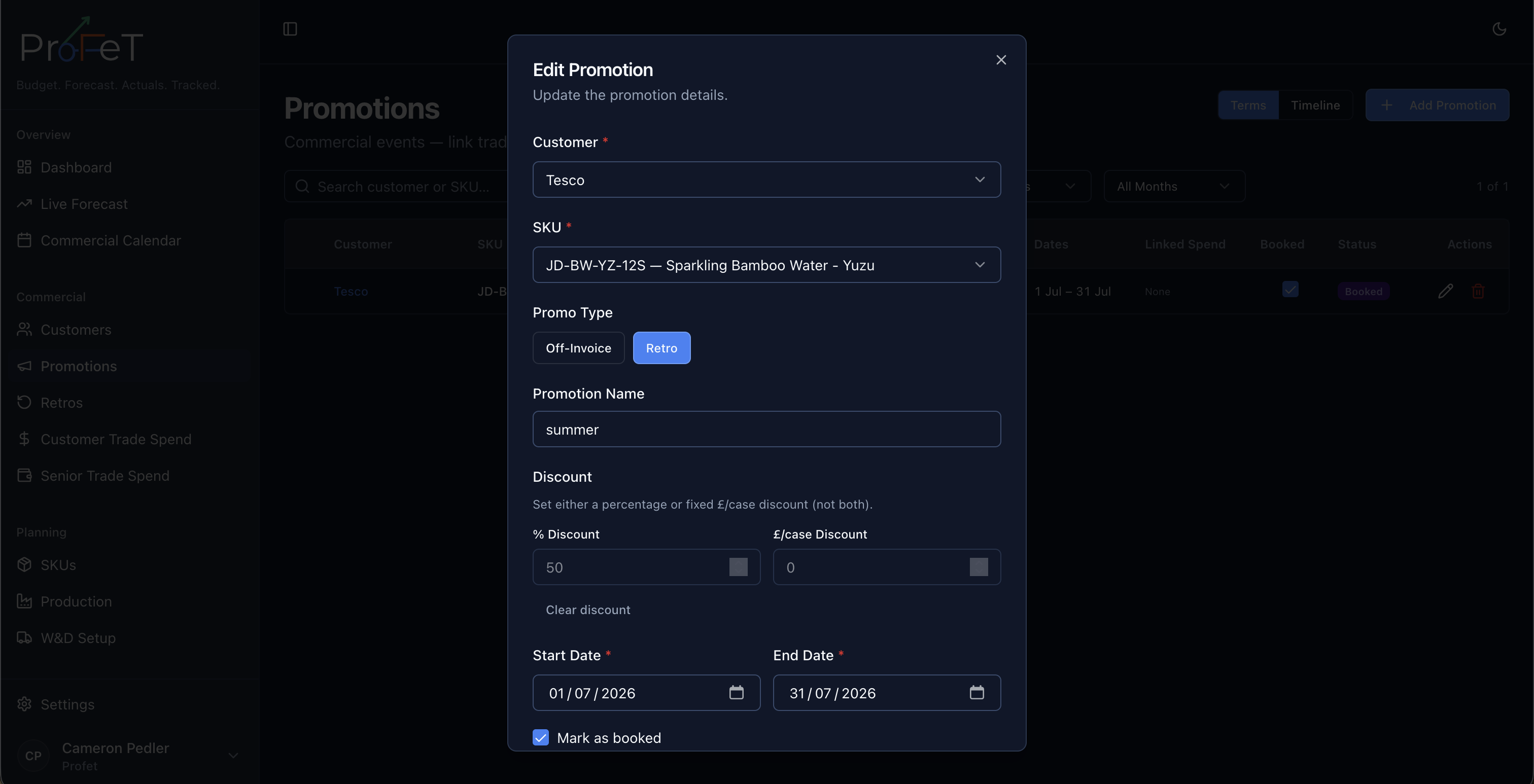
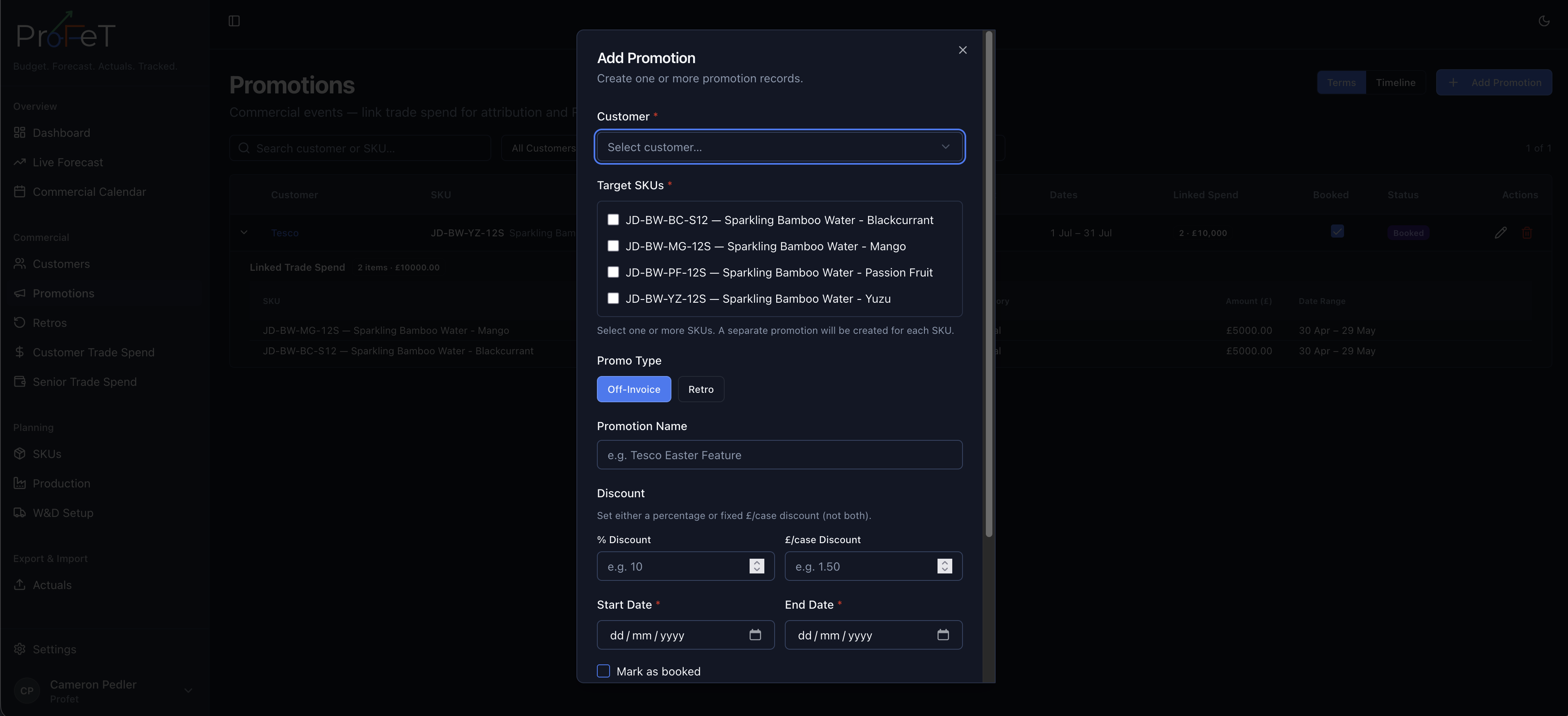
Navigate to Commercial → Promotions and click Add Promotion. Fill in:
| Field | Description |
|---|---|
| Customer | Which customer the promotion applies to |
| SKU | Which product is being promoted |
| Promo Type | Off-Invoice or Retro-Funded |
| Discount % | Percentage discount (e.g. 10 for 10%) |
| Discount per Case | Fixed discount amount per case (alternative to %) |
| Start Date | When the promotion begins |
| End Date | When the promotion expires |
| Impact Type | How the promotion affects demand (e.g. volume uplift) |
| Impact Value | The magnitude of the demand impact |
| Notes | Business rationale or context |
Booking Status
Promotions follow a status workflow:
| Status | Meaning |
|---|---|
| Planned | Proposed but not yet confirmed |
| Booked | Confirmed and committed — use the booking toggle to mark as booked |
| Active | Currently running (today is between start and end date) |
| Completed | Past the end date |
Status is derived automatically from dates and booking flag.
How Promotions Affect the Forecast
When you build a forecast in the Forecast Builder, ProFeT automatically detects active promotions for the selected customer × SKU pair. Any promotion with dates overlapping the forecast period applies a volume uplift — increasing the calculated cases for those weeks.
If multiple promotions overlap in the same week, the highest uplift wins (they’re not additive). This prevents over-inflating demand.
The financial impact (discount %, per-case retro) also feeds into the P&L calculation on the forecast, adjusting NSV and contribution.
Views
The Promotions page offers two views:
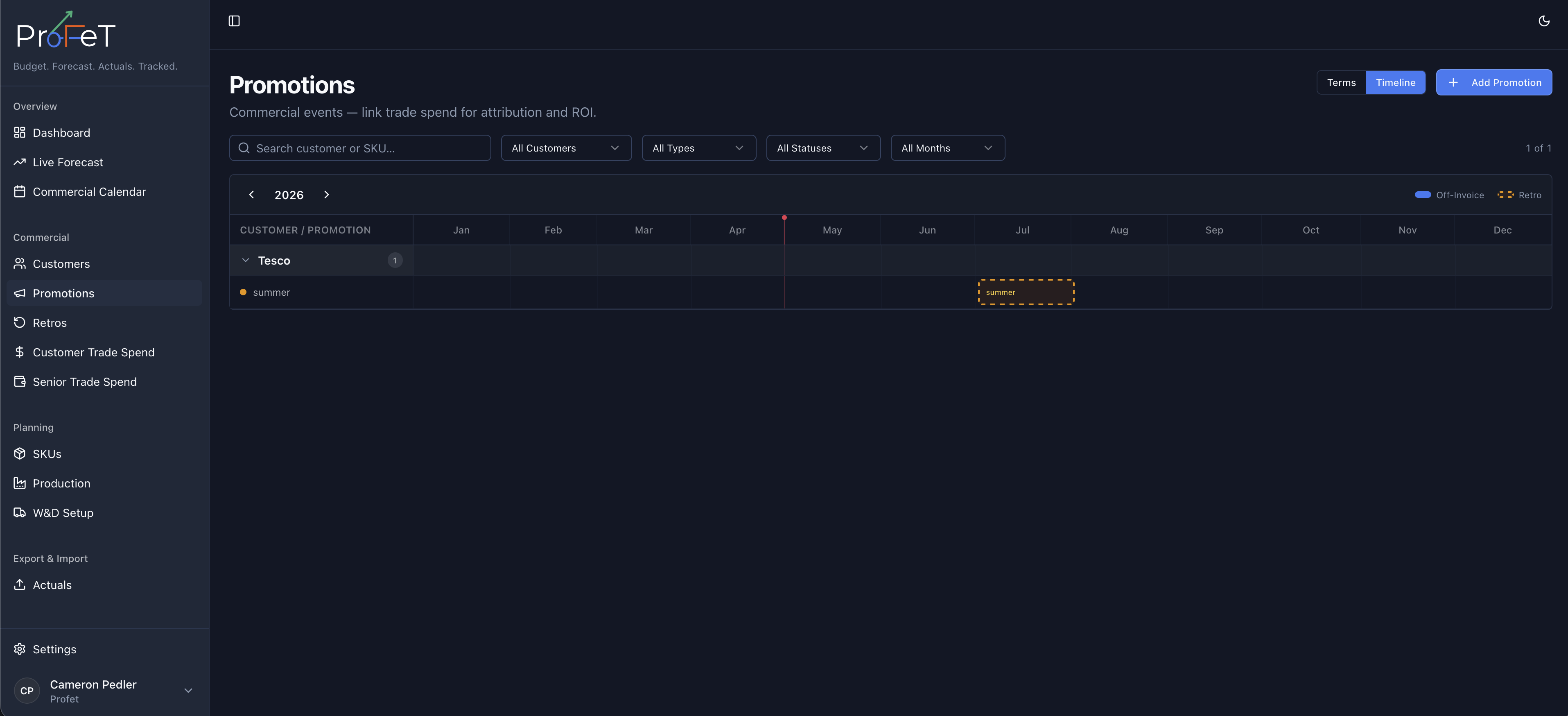
- Timeline — Calendar-style Gantt bars showing when each promotion runs, colour-coded by type and status
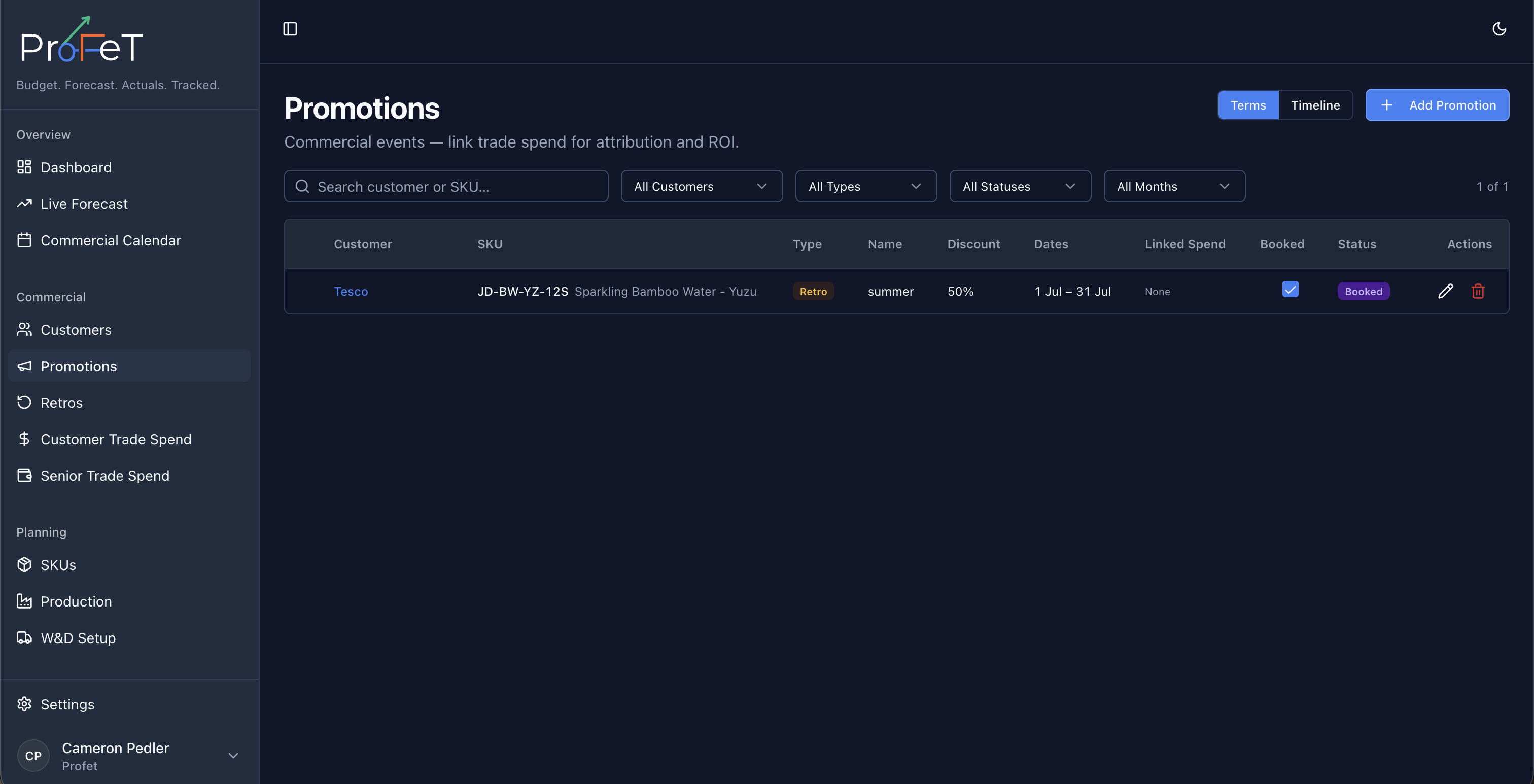
- Terms — Table view with all discount details, amounts, and dates
Linked Trade Spend
Promotions can have associated trade spend records — marketing budget allocated to support the deal. Link trade spend from the promotion detail view.
Managing Promotions
Click any promotion to edit its details. You can update terms, dates, or booking status at any time. Changes are reflected in the forecast immediately.
To delete a promotion, open it and click Delete. The associated volume uplift will be removed from future forecast calculations.
Promotions Screens