Production Planning
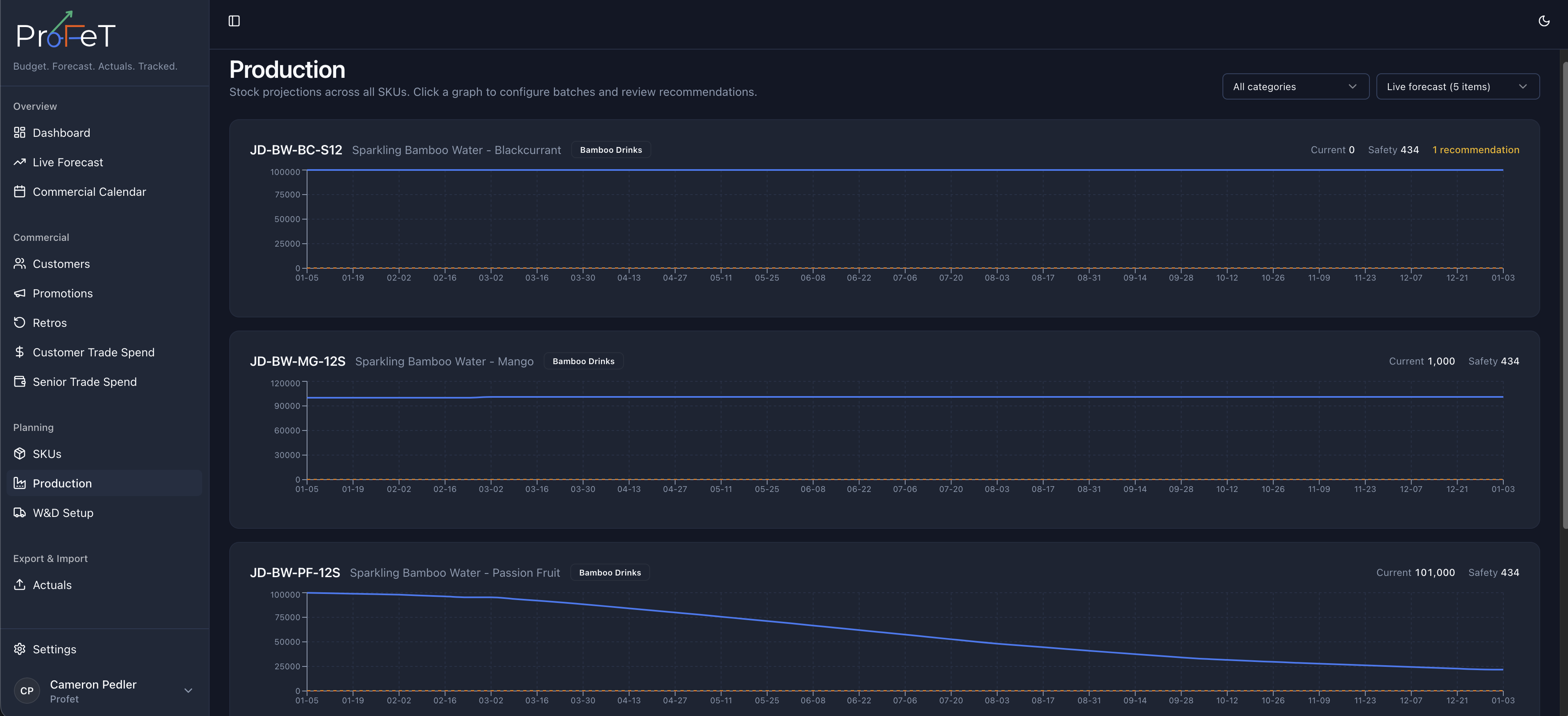
Plan production runs, manage stock levels, and project inventory across your SKU catalogue.
Production Planning helps you decide what to produce, when, and how much — balancing demand forecasts against stock levels, lead times, and shelf-life constraints.
Getting Started
Navigate to Planning → Production in the sidebar. Select a SKU from the dropdown to begin.
Once a SKU is selected, ProFeT automatically generates a production plan by analysing your current stock, forecast demand, and available batch sizes.
Understanding the Page
SKU Parameters
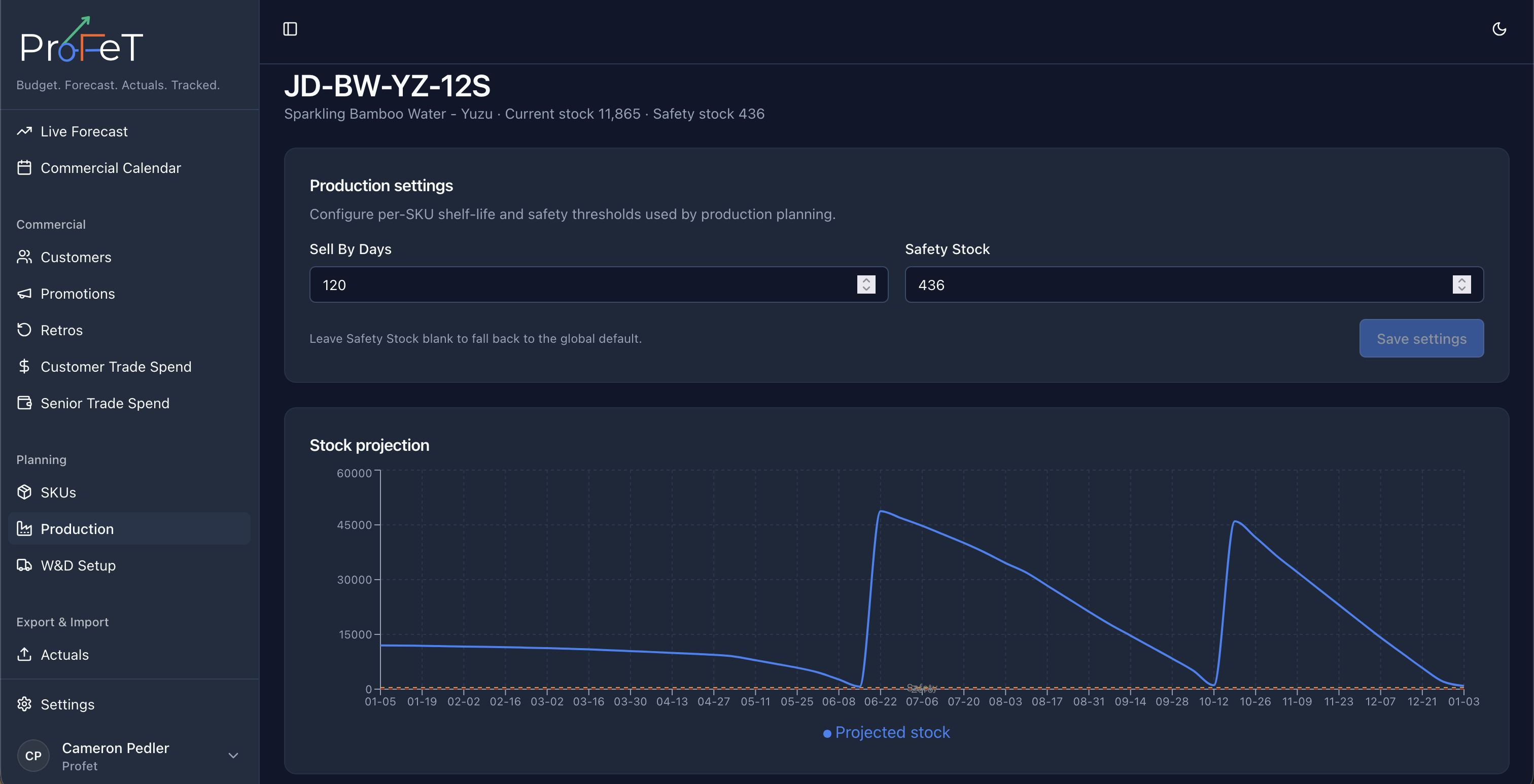
At the top you’ll see key facts about the selected product — SKU code, shelf life, safety stock level, and price per case. These come from your SKU configuration.
Production Requirement
This section shows a step-by-step calculation of how much you need to produce:
| Line | Meaning |
|---|---|
| Current Stock | Units currently in the warehouse (received batches only) |
| − Lead Time Demand | How much stock will be consumed while you wait for production to arrive |
| = Projected at Arrival | What you’ll have left when the new batch lands |
| Sell Window Demand | Total demand over your selling window |
| + Safety Buffer | Extra stock to protect against demand variability |
| = Target Stock | Where you want your stock level to be |
| Production Required | The gap between your target and projected arrival stock |
If production required is 0, you’re covered — no action needed.
Planning Controls
Adjust the parameters that drive the requirement calculation:
- Lead time (weeks) — How long from placing a production order to receiving stock. Default is 4 weeks.
- Safety buffer (weeks) — Extra weeks of demand to hold as insurance. Default is 2 weeks.
- Selling window (days) — How far ahead to plan. Auto mode calculates this from your shelf life (75% of total shelf life days). Switch to Manual to set a specific number.
Changes to these controls instantly recalculate the requirement.
Run Size Scenarios
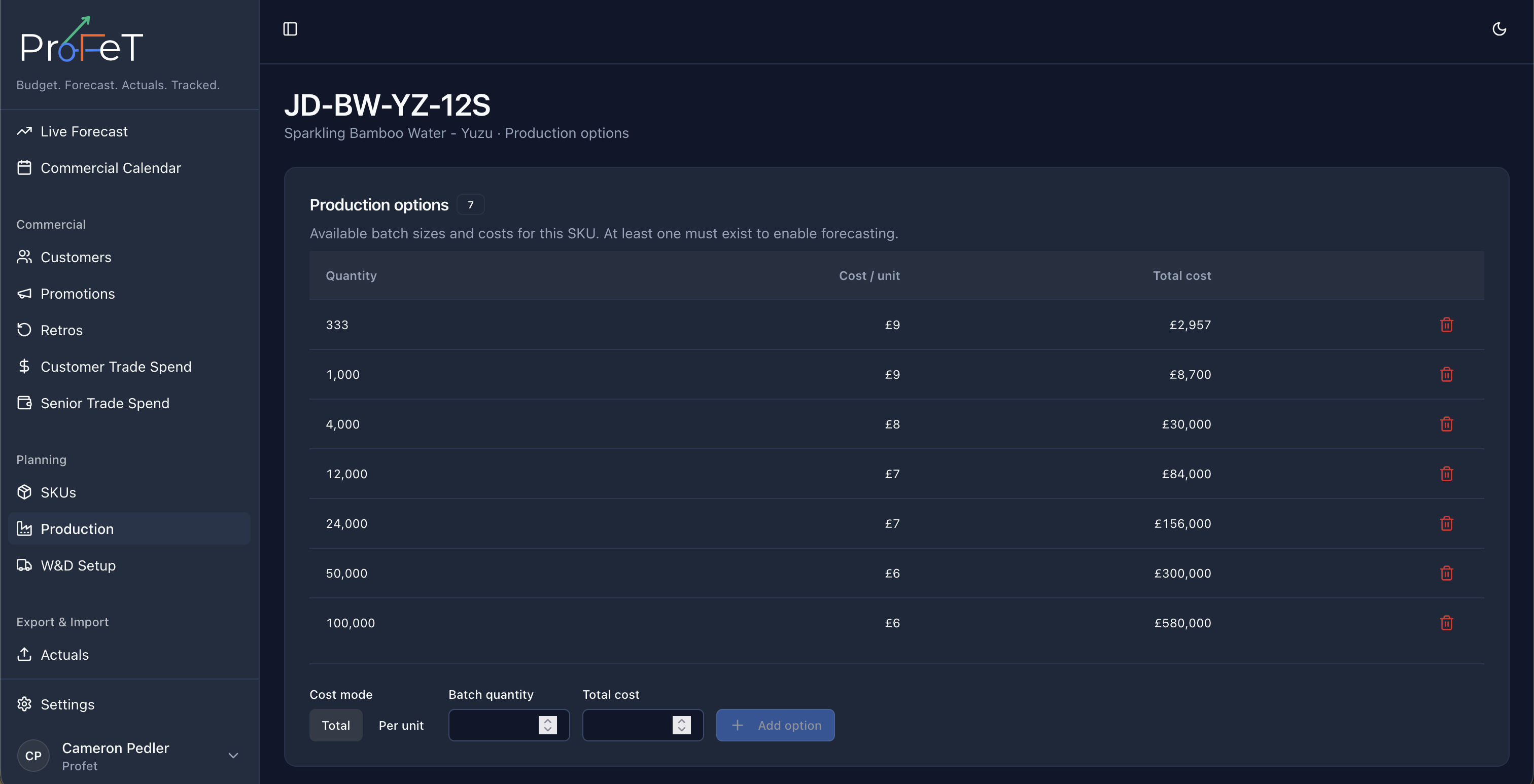
Each of your configured production options (batch sizes) is shown as a row with cost economics — quantity, cost per unit, and total cost. The option that best matches the plan’s first recommendation is badged as Recommended.
Use this table to compare trade-offs: larger batches are usually cheaper per unit but tie up more cash and carry shelf-life risk.
Working with Suggestions
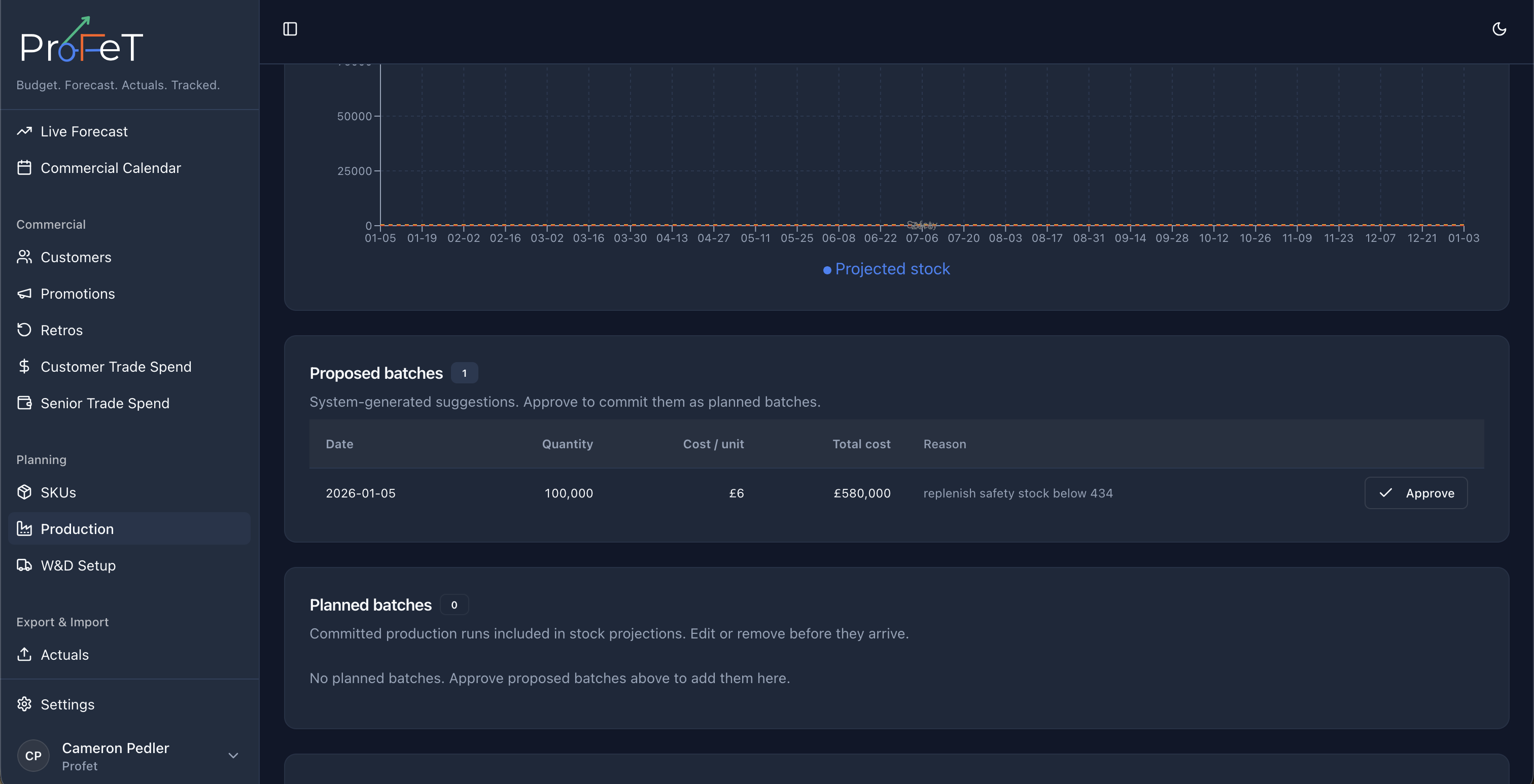
When you generate a plan, ProFeT suggests production runs to fill the gaps in your stock projection. These appear in the Suggested Runs section.
For each suggestion you can:
- Accept (✓) — Creates a real production batch in your plan, dated for when it needs to land. The batch is saved to the database with status
planned. - Dismiss (✗) — Hides the suggestion. Click “Show all” to bring dismissed suggestions back.
- Accept All — Accepts every suggestion at once.
Committed Runs
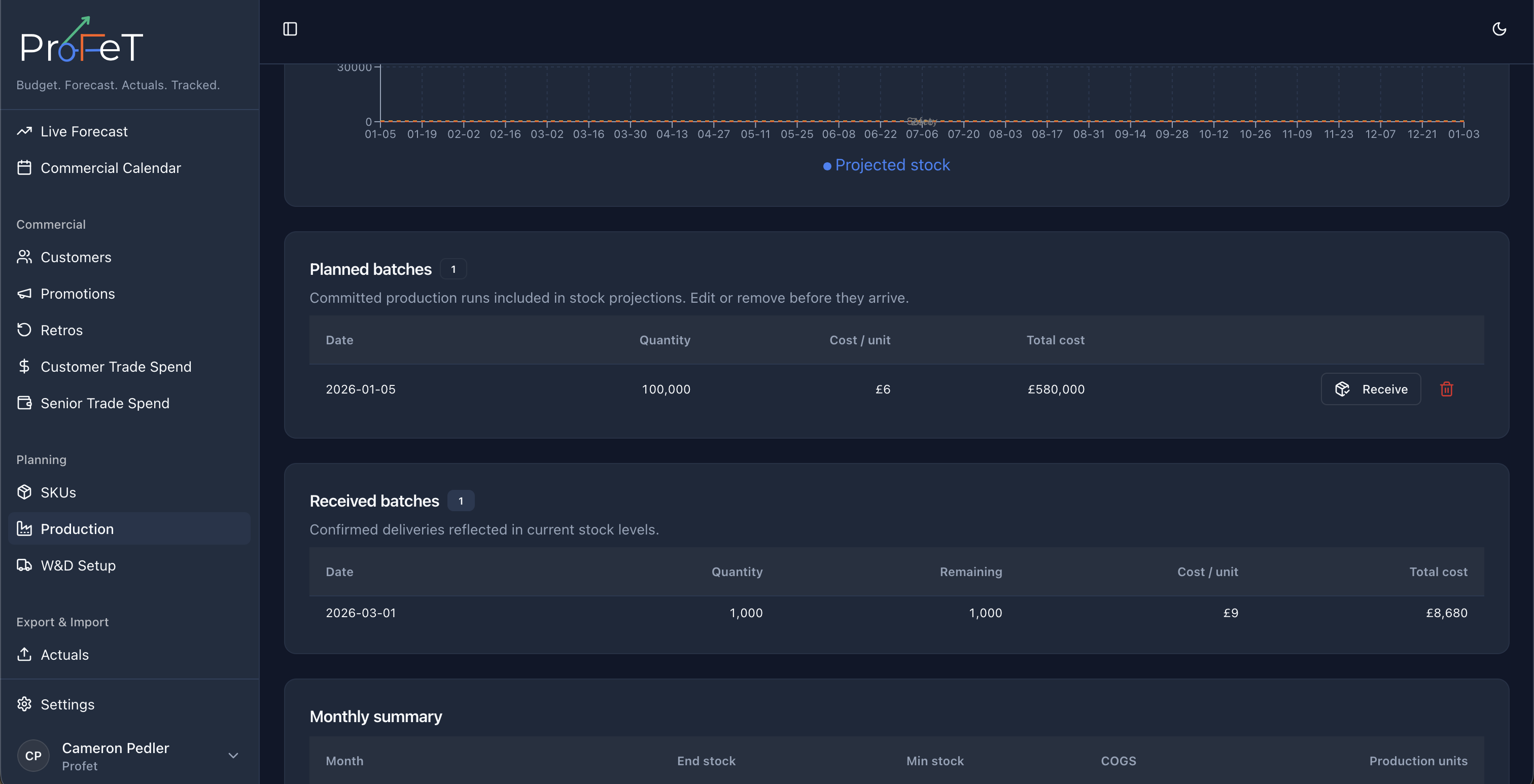
Accepted suggestions and manually added runs appear in Committed Runs. These are real production batches stored in your database — they persist across sessions and inform your stock projections.
Each committed run has:
- Received button — Click this when the production has actually been manufactured and is in the warehouse. This updates your current stock level.
- Delete button — Remove the run from your plan entirely.
Adding a Run Manually
Below the committed runs table, use the date picker and batch size selector to schedule a run yourself, then click Commit Run.
Stock Projection
The chart shows your projected stock level over 52 weeks based on:
- Current stock (received batches)
- Planned production (committed runs)
- Forecast demand
A red dashed line marks your safety stock threshold. If the projection drops below this line, you’ll see risk warnings.
Risk Warnings
ProFeT alerts you to potential problems:
- 🔴 Stock-out projected — Stock is forecast to hit zero. Shows when you need to order by (accounting for lead time).
- 🟡 Service at risk — Stock drops below safety level. Shows the decision deadline.
- 🔴 Shelf-life risk — A batch may expire with unsold units.
Batch Lifecycle
Suggestion  →  Accept  →  Planned Batch  →  Mark Received  →  Counts in Stock
                                ↑
Manual commit- Planned — The batch is in your production schedule but hasn’t been manufactured yet. It does not count towards current stock.
- Received — The batch has been manufactured and is in the warehouse. The stock trigger fires and your
current_stockincreases.
This separation ensures your stock figures only reflect what’s actually on the shelf, while still giving you visibility of what’s coming.
Weekly & Monthly Views
Weekly Projection Table
Toggle between 13, 26, or 52-week horizons. Each row shows the date, projected stock level, daily COGS, and a status indicator:
- 🟢 Above Safety — Stock is healthy
- 🟡 Below Safety — Stock is below your safety threshold
- 🔴 Out of Stock — Zero or negative stock
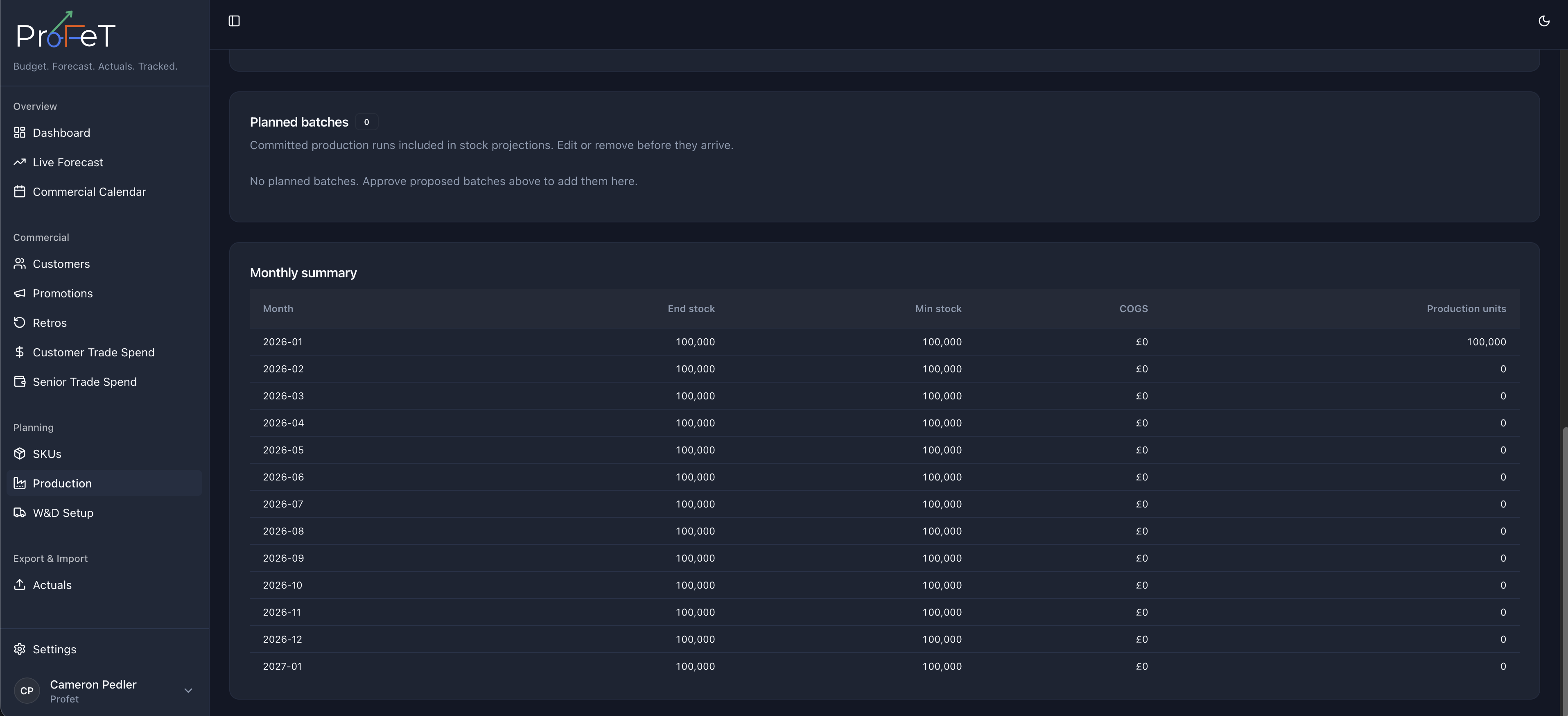
Monthly Summary
A condensed view showing end-of-month stock, minimum stock during the month, total COGS consumed, and production units landed.
Production Options & Recent Batches
At the bottom of the page (collapsible sections):
- Production Options — Manage your COGS tiers for each SKU. Add, edit, delete, and reorder batch size configurations.
- Recent Batches — View historical production batches that have been received, with edit and delete capabilities.
Production Planning Screens