Retros
Configure case rebates, growth overriders, and listing fees.
Retros (retrospective discounts) are rebates applied after the sale. Unlike off-invoice promotions, retros don’t reduce the invoice price — instead, they’re accrued as a liability and settled periodically.
ProFeT supports three types of retro mechanism, plus retro-funded promotions.
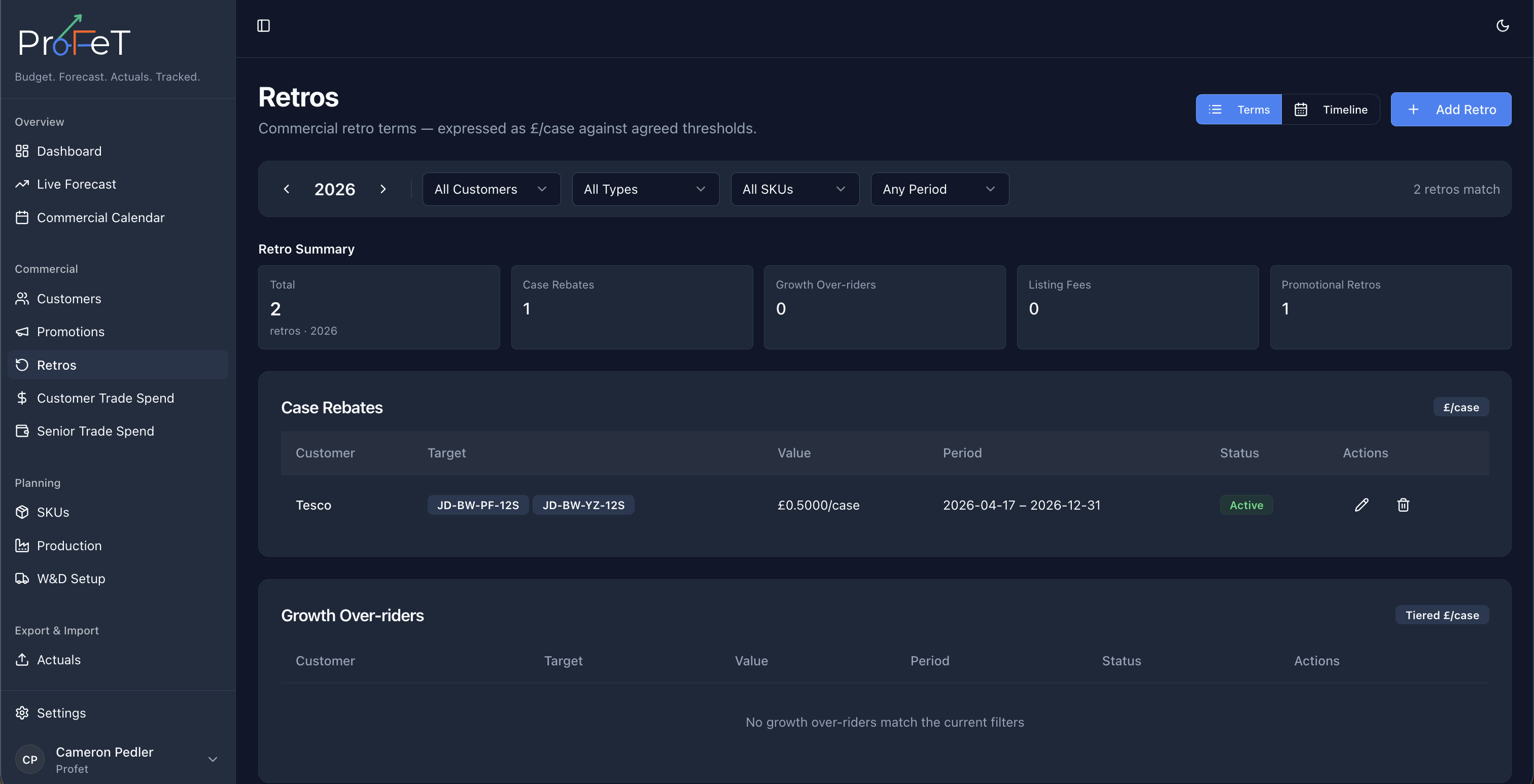
Case Rebates
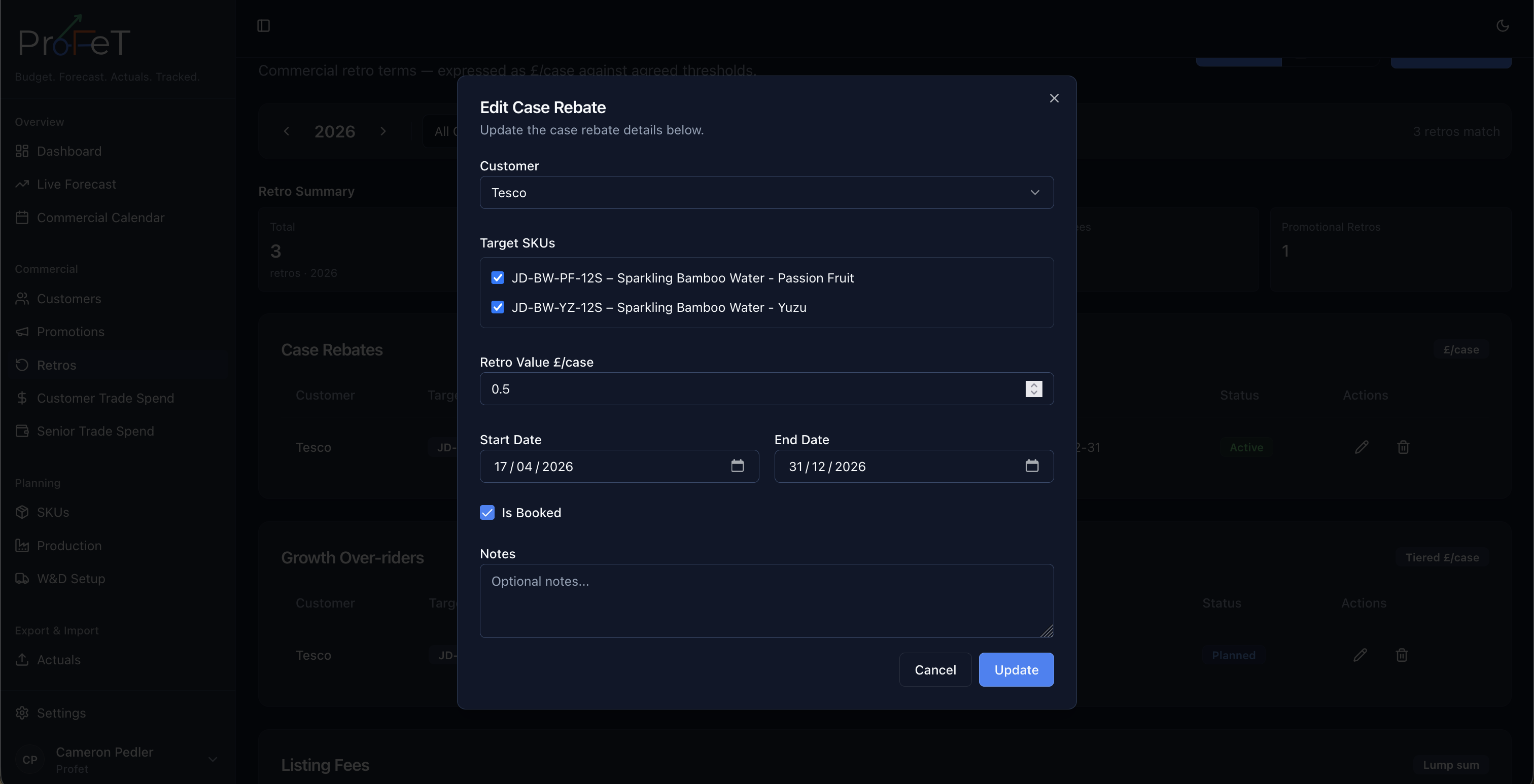
A straightforward discount per case based on volume. Case rebates target specific SKUs.
How They Work
| Setting | Description |
|---|---|
| Customer | Which customer the rebate applies to |
| SKU | One or more specific SKUs |
| Discount % | The rebate percentage |
| Min Quantity | (Optional) Volume threshold — the rebate only applies if total cases meet or exceed this number within the period |
| Start / End Date | When the rebate is active |
Example: 5% case rebate on selected SKUs for Customer X, January–June, with a 500-case minimum.
If the customer buys 600 cases of qualifying SKUs in that period, the 5% rebate applies to all 600 cases. If they buy only 400, no rebate is applied.
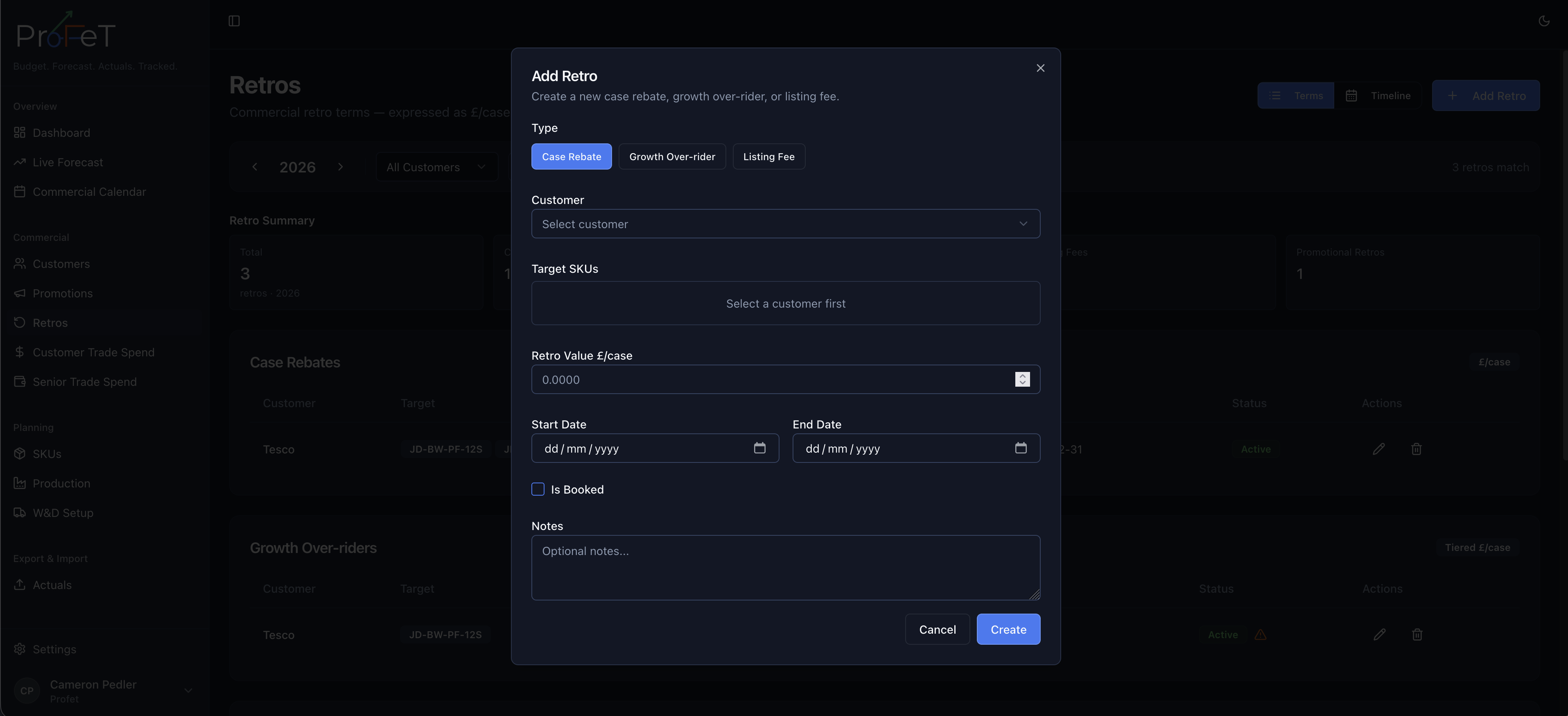
Creating a Case Rebate
Navigate to Commercial → Retros and select the Case Rebates tab. Click Add Case Rebate and fill in the details.
Growth Overriders
Growth overriders are tiered incentive programmes where the discount rate increases as volume grows. They reward customers for buying more.
How They Work
Define multiple tiers, each with a volume threshold and discount rate:
| Tier | Min Quantity | Discount % |
|---|---|---|
| 1 | 0 | 2% |
| 2 | 500 | 5% |
| 3 | 2,000 | 8% |
The customer receives the discount rate corresponding to the tier they reach. In this example, a customer buying 1,200 cases would receive 5% on all cases (Tier 2).
Configuration
| Setting | Description |
|---|---|
| Customer | Which customer |
| SKU | One or more specific SKUs |
| Tiers | Volume thresholds and corresponding discount rates |
| Start / End Date | Effective period |
Creating a Growth Overrider
Navigate to Commercial → Retros and select the Growth Overriders tab. Click Add Growth Overrider, configure the tiers, and save.
Listing Fees
Listing fees are fixed charges a retailer levies for stocking your product in their catalogue. They’re not volume-based — it’s a flat fee per customer × SKU combination.
Configuration
| Setting | Description |
|---|---|
| Customer | Which retailer |
| SKU | Which product is being listed |
| Amount | The fee amount |
| Start / End Date | When the listing fee applies |
Creating a Listing Fee
Navigate to Commercial → Retros and select the Listing Fees tab. Click Add Listing Fee and fill in the details.
Retro-Funded Promotions
These are promotions where the discount is funded via a retrospective rebate rather than an on-invoice deduction. They’re created on the Promotions page with the type set to Retro-Funded, but they also appear on the Retros page for a complete view.
Booking Status
All retro types follow the same status workflow:
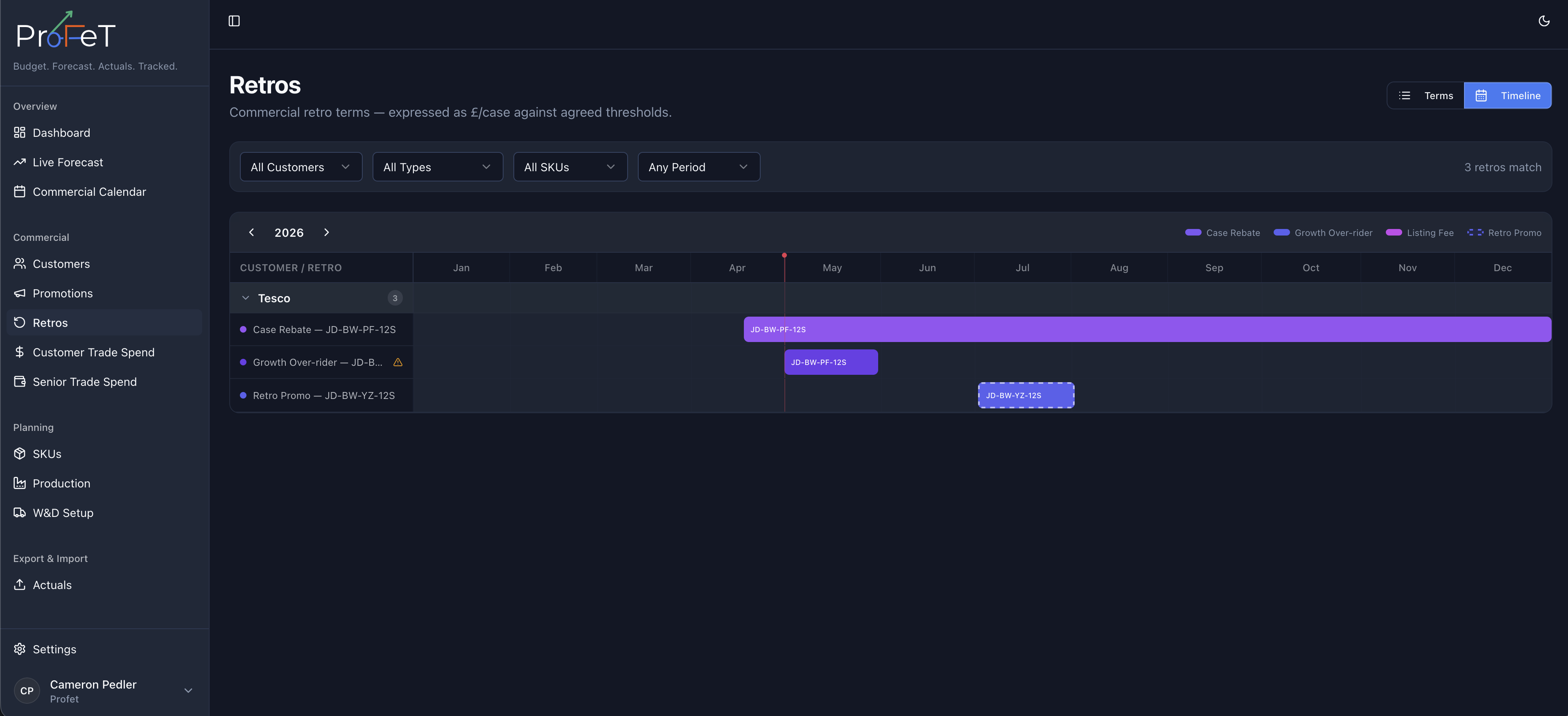
| Status | Meaning |
|---|---|
| Planned | Proposed but not committed |
| Booked | Confirmed — toggle the booking flag to mark as booked |
| Active | Currently running (within date range) |
| Completed | Past the end date |
How Retros Affect the Forecast
Retro costs are factored into the P&L on the Live Forecast and Dashboard:
NSV = GSV − RetrosThe retro per case is calculated from the applicable case rebates, growth overrider tiers, and retro-funded promotion terms for each customer × SKU combination. This flows through to contribution calculations automatically.
How Retros Apply to Actuals
When viewing sales in Actuals, retros are calculated dynamically. Each sale checks whether it falls within an active retro’s date range and meets any quantity threshold. The retro amount is shown per sale and factors into margin calculations.
Retros Screens